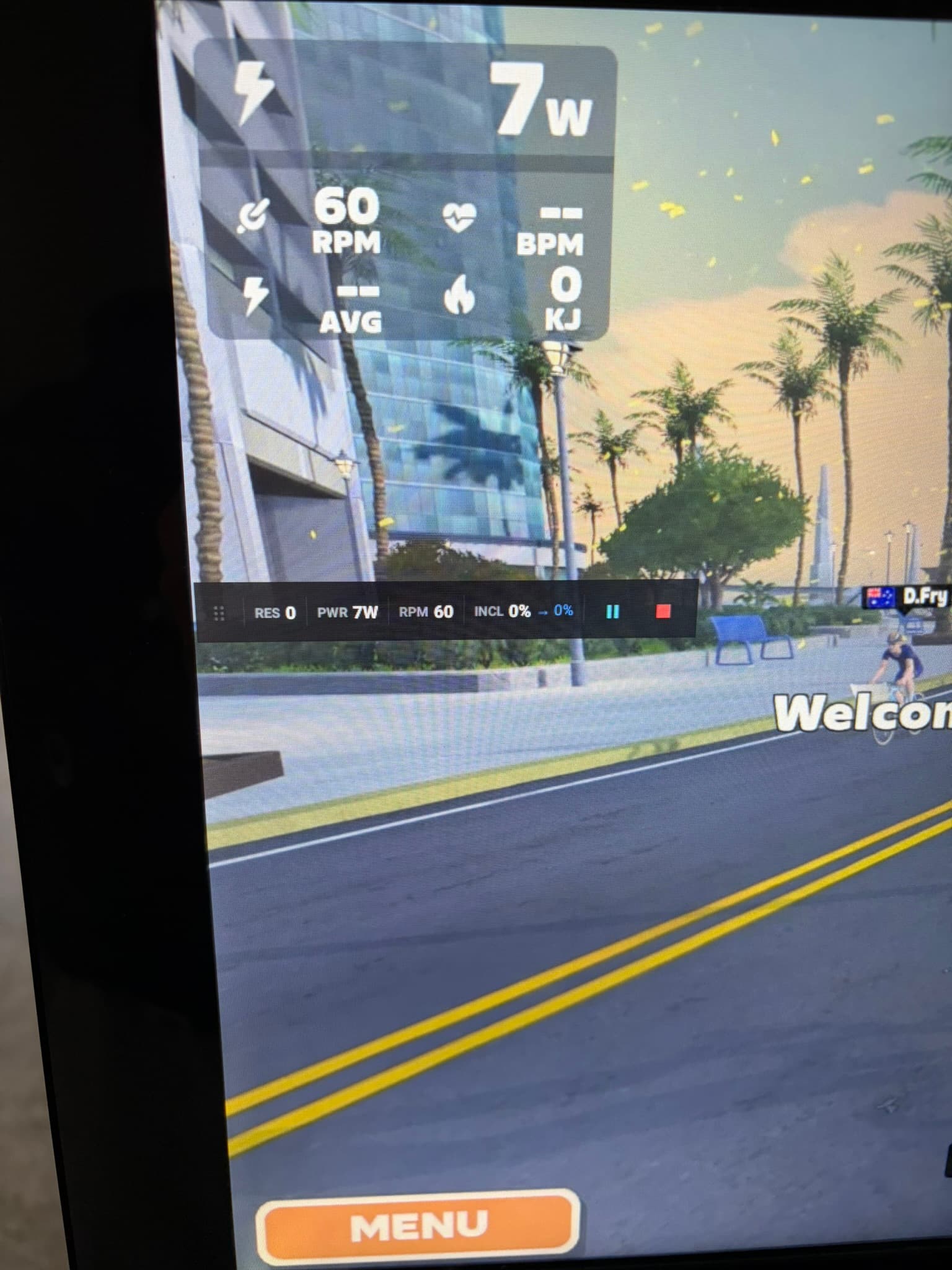
Running Apps on Your Console's Screen
Since your console runs Android, you can display fitness apps directly on it — either by streaming from a computer or by sideloading the Android app. This gives you a single-screen setup without needing a separate phone or tablet.
Game Streaming (Computer → Console)
Stream a fitness app running on your computer to the console's screen. The app runs on the computer and connects to Hyperborea over the network via BLE or Wi-Fi as usual — the console just acts as a display.
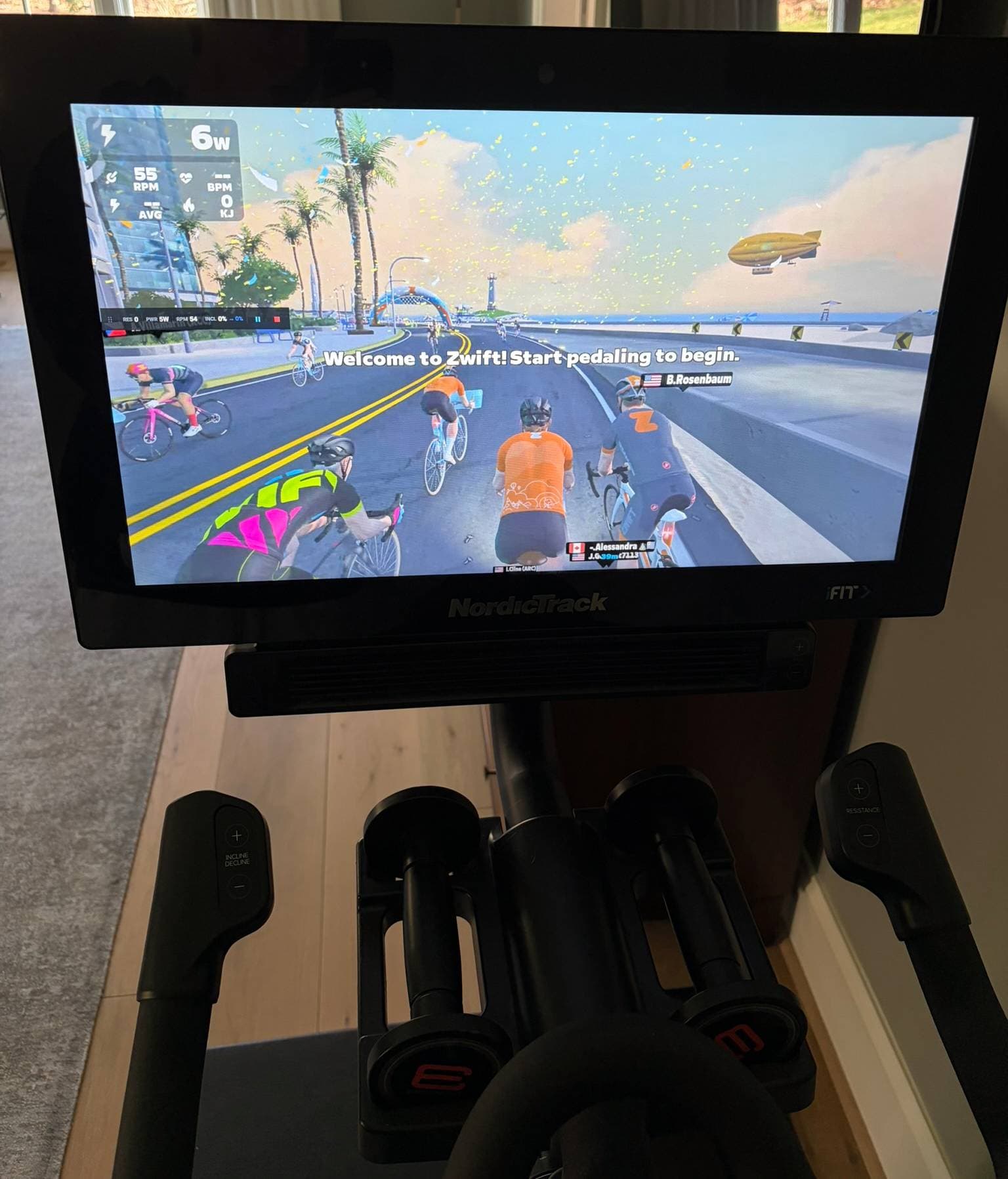
- Sunshine + Moonlight — Open-source game streaming. Sunshine runs on your computer, Moonlight runs on the console. Low latency, up to 4K 120fps. The most popular and well-documented option.
- Apollo + Moonlight — Fork of Sunshine with extra features like virtual display support. Uses the same Moonlight client on the console.
- Steam Link — Simple option if you launch through Steam. Fitness apps like Zwift can be added as non-Steam games.
- Parsec — Proprietary alternative with a good Android client. Also useful as a general remote desktop solution.
Sideloading
If a fitness app has a native Android version (e.g., Zwift), you can sideload the APK directly onto the console — no computer or streaming required.
However, most consoles do not support this well. Many run outdated versions of Android that newer apps won't install on, and the built-in GPUs are rarely powerful enough to handle graphically demanding fitness apps at a playable frame rate. Game streaming from a computer is the more reliable option in most cases. Sideloading is best suited for lightweight apps or consoles with newer hardware.
System Overlay
Hyperborea's System Overlay (toggled from Quick Settings) displays live metrics on top of whatever's on screen. This works with both streamed and sideloaded apps — so you can see your power, cadence, and other data overlaid on the fitness app's interface.