Profiles & Ride History
Hyperborea supports multiple profiles to track workout history separately. Each profile stores body metrics, training parameters, and a full ride history.
Editing a Profile
From the profile stats screen, tap Edit Profile to open the profile editor.
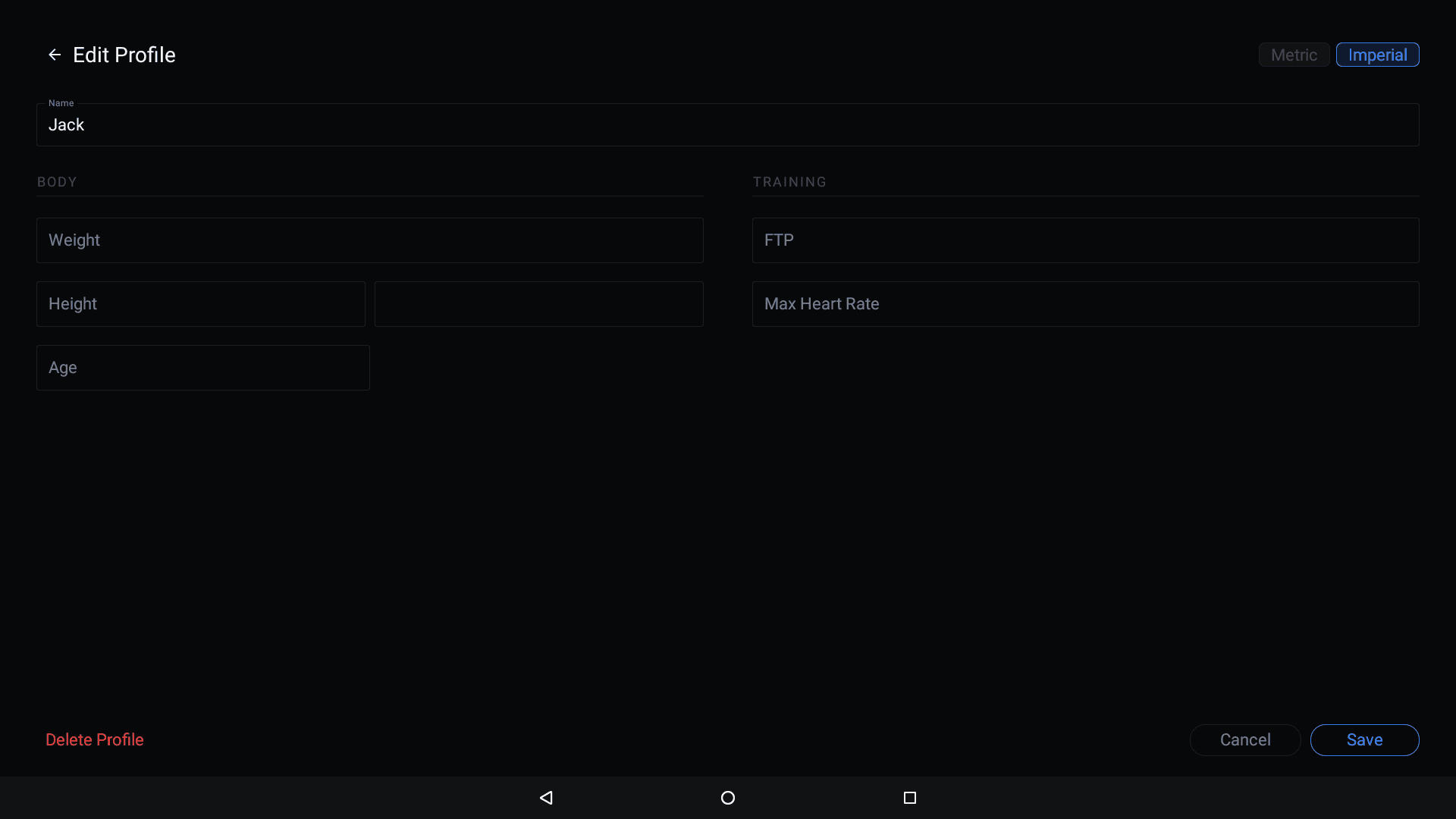
The profile editor has the following fields:
- Name — your display name
- Body — Weight, Height, and Age
- Training — FTP (Functional Threshold Power) and Max Heart Rate
- Metric / Imperial toggle in the top-right corner
Setting your FTP and Max Heart Rate enables power zones and HR zones in your ride details.
Tap Save to apply changes or Cancel to discard them.
Deleting a Profile
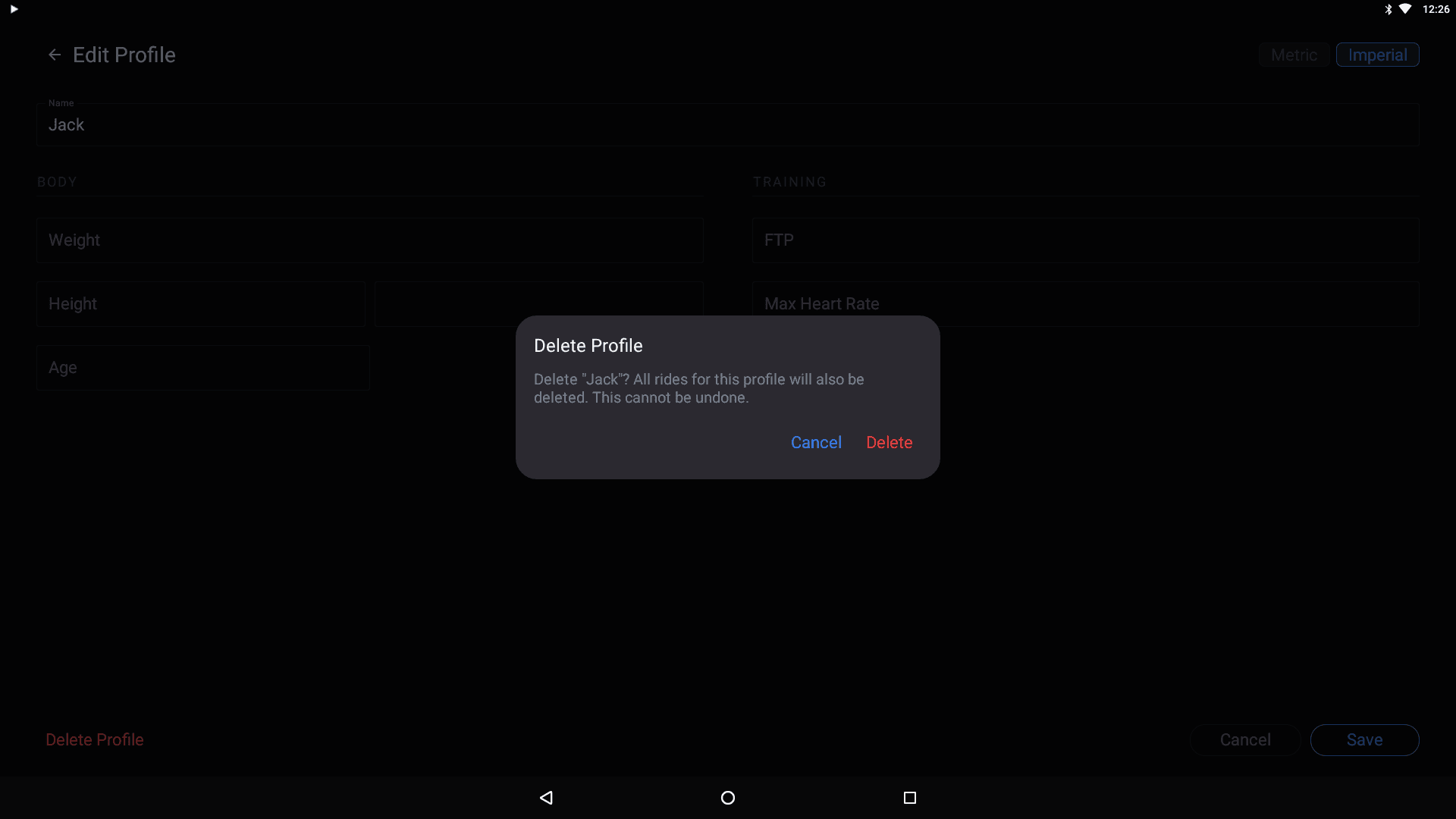
Tap Delete Profile (in red) at the bottom-left of the Edit Profile screen. A confirmation dialog will appear warning that all rides for the profile will also be deleted.
Switching Profiles
From the profile stats screen, tap Switch Profile to return to the profile picker.
Ride History
Each profile tracks a full ride history. From the dashboard, tap the profile icon in the top-right to view your profile stats and ride history.

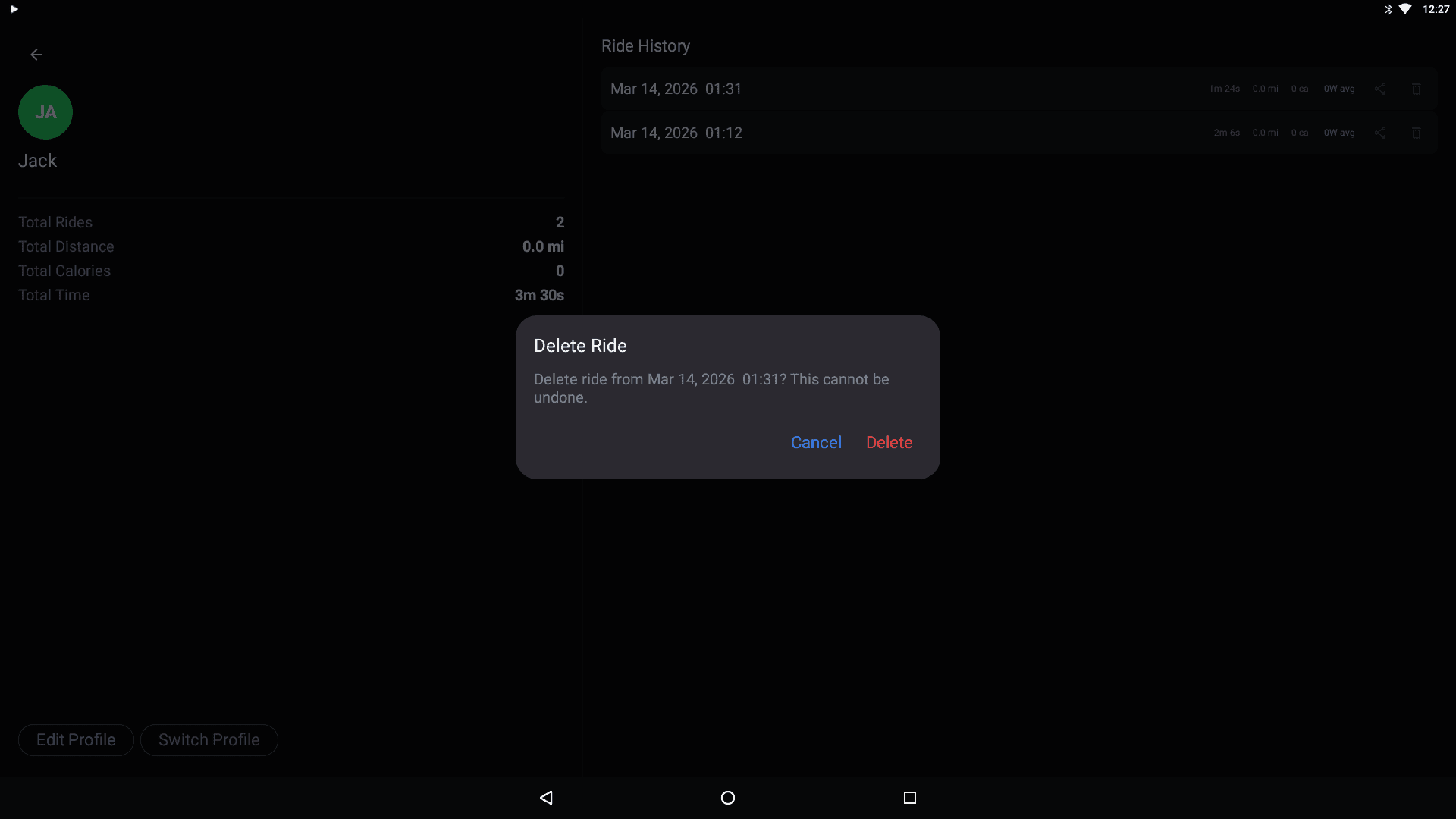
The left side shows aggregate stats: Total Rides, Total Distance, Total Calories, and Total Time.
The right side lists all rides with the date, duration, distance, calories, and average power. Each ride has export and delete icons.
Deleting a Ride
Tap the delete icon on any ride in the history list. A confirmation dialog will appear.
Ride Details
Tap a ride in the history list to view its details.
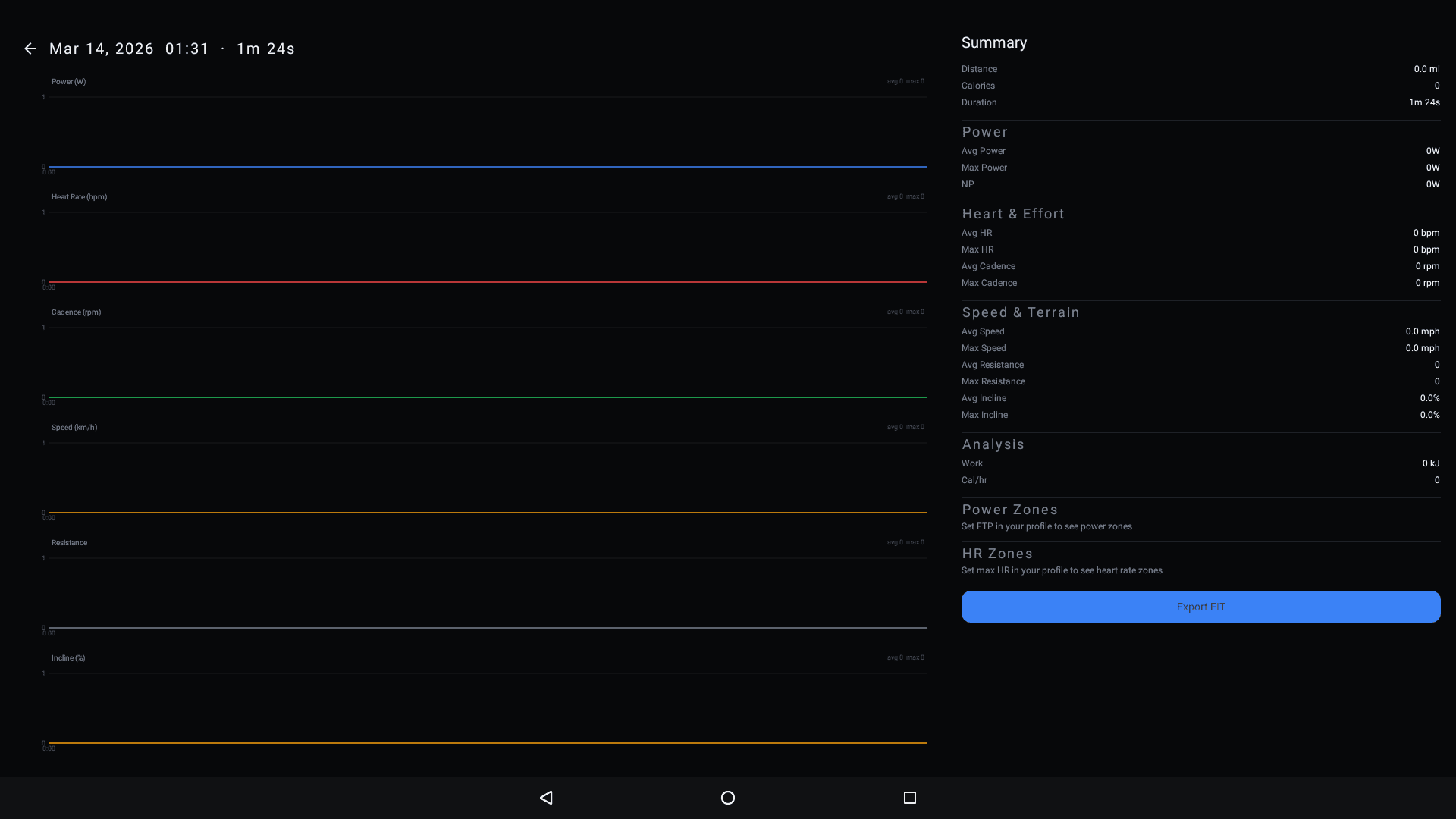
The ride detail screen shows:
Time-series charts (left side):
- Power (W)
- Heart Rate (bpm)
- Cadence (rpm)
- Speed (km/h)
- Resistance
- Incline (%)
Summary stats (right side):
- Summary — distance, calories, duration
- Power — average, max, normalized power (NP), IF (Intensity Factor), TSS (Training Stress Score)
- Heart & Effort — average/max HR, average/max cadence
- Speed & Terrain — average/max speed, average/max resistance, average/max incline
- Analysis — work (kJ), VI (Variability Index), EF (Efficiency Factor), average/max W/kg, Cal/hr
- Power Zones — displayed when FTP is set in your profile
- HR Zones — displayed when Max Heart Rate is set in your profile
Exporting FIT Files
Tap Export FIT at the bottom of the ride detail screen to export the ride as a FIT file. FIT files are compatible with Strava, Garmin Connect, TrainingPeaks, and other fitness platforms.
You can also export immediately when stopping a workout by choosing Save & export FIT from the stop dialog.
Retrieving FIT Files from the Device
Exported FIT files are saved to the console's local storage. Currently, you need to pull them off the console manually using ADB (Android Debug Bridge):
- Connect your computer to the same network as the console, or connect via USB.
- Use
adb pullto copy the FIT files from the device to your computer:
FIT files are namedadb pull /sdcard/Download/ ./rideshyperborea_yyyyMMdd_HHmmss.fit(e.g.hyperborea_20250614_083012.fit). - Upload the files to your preferred platform (Strava, Garmin Connect, TrainingPeaks, etc.).
Better export options (such as cloud sync or direct upload) are planned for the future.